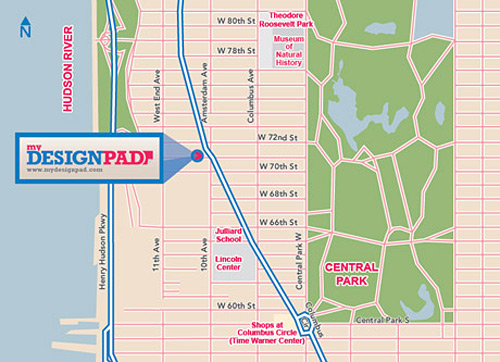
Have you ever had the need to create a stylized map to match a certain design and not sure how to create one like a pro? Well I hope this tutorial will help you create your own stylized map like one.
Creating your own map will take some time but is pretty much straight forward and learning how to use layer appearance is pretty easy and will make your maps looking more professional. Download my sample Illustrator file at the bottom to practice or restyle for your own project.
For this demonstration, I am going to trace a map of mid-town, Manhattan in New York City with Adobe Illustrator CS4.
Step 1: Capture Screen Shot of Map
Captured a screen shot of your map with Google Maps. Open it in Illustrator.
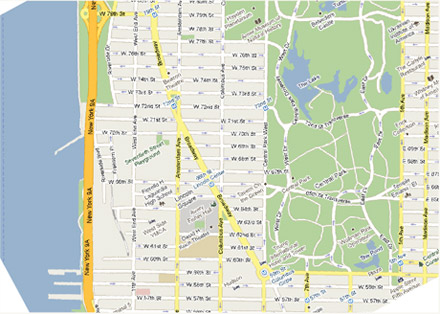
Step 2: Set Map as Template
Lock the map screen shot in the bottom layer. Double-click on the layer in the Layers Panel to bring out the Layer options. You may check the template and have the image dim to 50% for easier tracing. You also have the option to print this image or not by checking the print box.
Step 3: Name Layers
Create multiple layers and name them accordingly. For example, create a layer for water and call that layer water. Create a layer for parks, small roads, medium sized roads, big roads etc. This will make stylizing the map easier later on. This is how I organized my layers. You can just create the same layers like mine if you like.

Create a layer and call it “work” and put this layer on top of everything else. We are going to start tracing everything in this layer with a 2pt red stroke so we can see clearly what is traced.
Step 4: Moving Elements to The Right Layers
Once everything is traced, it is time to select all the related objects and move them to their appropriate layers. For example, select all the lines that represent small roads and move them to the “small road” layer. Do the same for the big roads, parks, water, etc until you have moved everything from the “work” layer into your appropriate layers. (Note: Layer order is important. The road layers should be on top of all the land mass layers, the big road layer should be on top of the small road layer. The text layer should be on top of all the graphic layers.) Delete the work layer after everything is moved out of it.

Step 5: Setting Layer Appearances for Roads
Now comes the fun part. Instead of changing the stroke color and weight of our roads using the stroke panel, we are going to style them using Layer Appearance. Whatever we do with the layer appearances will apply to all the graphics within that layer. To do this, select the layer you want to style. We are going to style the small roads first. Click on the circle on the right of the layer to select everything in the layer. Go to the tool panel and turn off any fill and stroke color it will have. Pull up the “appearance” panel under the “window” drop-down menu if it is not out already. In the appearance panel, click on the pull down menu on the upper right-hand corner and select “Add New Stroke.” Do that again to get a second stroke. You will see 2 strokes in the appearance panel now. Change the 2 stroke colors and weighs to match your design. The bottom stroke should be thicker than the stroke on top.
Repeat Step 4 for the other set of roads.

Step 6: Styling Land Masses
You may use Layer Appearance to style the land mass shapes as well but it is not necessary. I normally just select all the graphics within the layer and style the shapes using the stroke and fill option on the bottom of the tool panel. Layer Appearance are more useful for creating strokes with multiple stroke colors/weights and overlapping lines.
Step 7: Styling Names and Labels
For the street names, choose the font that you would like to use and type them out. Make sure the type layer is on top. If you would like to have your texts styled with a different color stroke, follow step 5. For this example, I will style the street names with a gray fill and a white stroke. You can look into the Appearance panel of my Illustrator file to see how this is done if you are unclear or lost with my instructions.

Summing Up
This is it. I hope you fill this useful. If you have any questions or comments about this tutorial, please let me know by writing in the comments area.
Download sample file here: MyDesignPad Manhattan Map



33 comments »
March 1st, 2010
Thanks a bunch for this tutorial. I always wondered how to get the street strokes so perfect! Now, how about you do a tutorial on masking?
March 1st, 2010
Hey Timmy, how do you get the stroke on the text to not obliterate the fill? I’ve tried to recreate what you’ve done and my stroke ends up filling in the text. Thanks for posting this. I really love your work, btw.
March 2nd, 2010
Hello, I hope you find this tutorial useful. I think all you have to do is to make sure you put the stroke layer under the fill layer in the Appearance panel. That way the fill is sitting on top and the stroke will not eat into the fill area. Let me know if you have any more questions about this.
March 3rd, 2010
Your site and your work is dynamite. It’s lively, clean, but still logical – easy on the eyes and brain. Gorgeous designs are basically useless if you can’t make any sense of them and the message gets lost.
You do an excellent job of balancing beauty and the message. You should be really proud of all that you’ve accomplished. Any creative insight from an accomplished designer such as yourself is invaluable for a poser such as myself :)
March 5th, 2010
Thanks Claire for your lovely compliment. And I will sure work on a post regarding creative insights in mind. There is this statement that I remember from an article on confidence – “fake it till you make it” – I would say you are just as much of a great designer as I am or any other designers out there as long as you keep on working on it and aspire to be better.
April 26th, 2010
[…] Encuentra este tutorial en inglés haciendo click aquí. […]
September 3rd, 2010
I am missing something, Timmy. How do I capture a screen shot?
September 3rd, 2010
Hello, on a Mac computer, you press command+shift+3 to capture a screen shot of the entire screen. If you press command+shift+4, you will get a cross hair where you can select the area on the screen that you want a screen shot of. If you are using a pc, which I am not too familiar with, you can just Google how to capture a screen shot on Windows.
May 29th, 2011
Thank you! This is so lovely and helpful :)
July 13th, 2011
Awesome. very helpful, thanks a lot!
September 11th, 2011
Thank you! This is so helpful. I have a question, How do I merge all the layers into a single layer. Thanks a lot for your help.
September 12th, 2011
To merge all layers into a new single layer, select all layers. Then go to the LAYERS Panel. Bring out the drop down menu on the upper right hand corner. Select “Collect in New Layer.” That should do it.
May 30th, 2012
Hi, This tutorial is great! I was wondering what font you used for the street names, In image 9. It looks like Myriad Pro but a bit stretched. Thanks!
May 30th, 2012
Dear Eve, The font I used on this sample is Arial. You may download the sample file for free. Find the download link at instruction number 9 in the post.
June 9th, 2012
This was so helpful! I was quite intimidated before I ran into this. Thanks a bunch! I’m very happy with the result.
August 14th, 2012
Thanks! I actually have to create a map for a client, and this really helped me out.
August 14th, 2012
Happy to hear that this was useful to you with your work!
August 24th, 2012
I was able to follow the tutorial just fine, but at the end when I tried to make a clipping mask, any layers that I had applied Appearances to disappeared. I can’t find anything online about this issue. Did I miss a step somewhere?
January 28th, 2013
Make sure you check out Google permissions before you try to use this for an actual project. http://www.google.com/permissions/geoguidelines.html
“You may not use Google Maps or Google Earth as the basis for tracing your own maps or other geographic content.”
April 13th, 2013
The thing about that adub is that Google doesn’t have a monopoly on the geography of the land; there are other maps out there and it is simple enough to scan the image of a map in a book and then use that image as a template or use an image from a government website–it is not necessary to use a Google map image. It is therefore nearly impossible for Google to prove that you used their image to create your own unless you admit to it.
October 15th, 2013
Doesn’t work for me on windows… Ive been trying for the last house… I just dont know how to split the image into parts, like wather, streets etc. Do you trace it or what?
October 15th, 2013
Yes, you have to create a layer for each set of elements and trace the image in adobe illustrator.
November 13th, 2013
hi every one.
i am a designer of web. i assigned a new task to make the map (map for the stadium of any sport matches where map show the audience view.)
i want to make it on illustrator and also tell me about the svg file that how to create it.
its my first job and i shall be very thanks full for helping me.
thanks
January 25th, 2014
This is so helpful, with great design. I was wondering approximately how long the above process takes you.
January 27th, 2014
It took about 4 hours to create this particular map.
June 12th, 2014
Instead of using a screen shot of a map start with actual vector files!
http://openvectormaps.com/
June 24th, 2014
[…] simple vector map that I can scale to my needs. I have the latest Illustrator and have found a tutorial I like. However, the tutorial uses layer styles to bulk-style the streets I trace. The problem with […]
November 5th, 2014
Can you enlarge the map to any size when done creating it?
November 6th, 2014
Yes, after you finish drawing the map with illustrator, you can enlarge the map to any size without losing quality.
April 20th, 2015
Thanks so much for the great tutorial!!!
One question…I have a lot of dead end streets on my map. I need to close them off…ie I have a beige fill with white outline…the white outline doesn’t extend around the end of the road. How do I do that? Thanks in advance!
December 8th, 2015
Hi Tim,
Loving this tutorial.
I am a complete noob, but I’m trying to learn. Can you detail how to do the tracing step with the neatly traced 2pt red lines?
Lots of “Live Trace” tutorials I checked were leaving me empty handed.
Thank you!
October 16th, 2019
Everything is clear but as I draw an island the coastline doesn’t keep the curves I designed initially, they bacame straightened!!! Why?
Aris
November 29th, 2019
Not sure exactly what your problem is but you may check the settings in AI>Object>Path and AI>Preferences>General as well as Selection & Anchor Display to see if you can find a solution there.